
How to Pack a Computer for Moving in 5 Easy Steps
Considering an average PC costs about $500, with high-end machines going upwards to $4,000, learning how to pack a computer for moving suddenly becomes one of the most important tasks on your to-do list. Computers are also very fragile, which makes the process of preparing them even more important. Thankfully, these next five easy steps will show you how to secure your PC for transportation without much trouble.
Is it bad to move a desktop computer or a laptop? Of course not, but you will have to take all the necessary precautions to secure them. Considering these are very delicate, expensive, and important belongings, it's always a good idea to hire a professional company to assist you with the relocation.
Step 1 - Get as Many Supplies as Possible
If you're wondering, "How do I pack my computer to move?" you'll have to start with getting all the necessary supplies. Unlike packing dishes, which can be done with just some paper and boxes, learning how to transport a PC will require more materials right from the get-go. Think of computers as very expensive, fragile items, so try not to cut back on packing resources. After all, replacing them would cost you a lot more than these supplies ever could. Before you go shopping for supplies, add the following tools and materials to your to-do list:
- Computer boxes,
- Lots of paper,
- Bubble and plastic shrink wrap,
- Styrofoam inserts and foam sheets,
- Relocation blankets,
- Ziplock bags,
- Plastic twist-ties,
- Scissors and tape,
- Labeling kit.
Measure the Computer if You Haven't Saved the Original Packaging
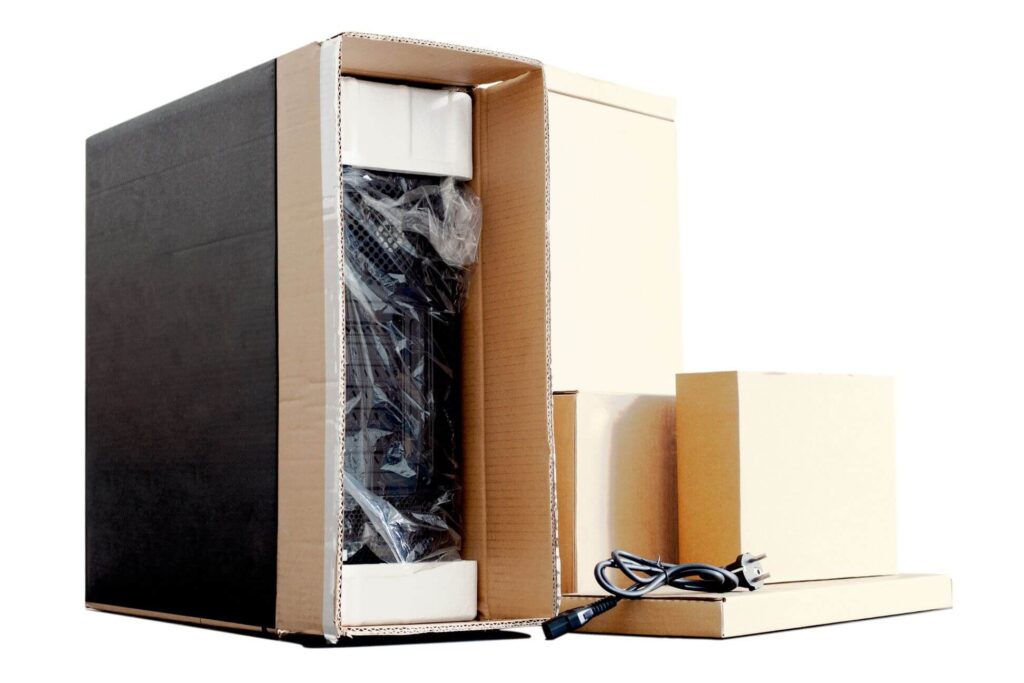
If you're not sure how to safely transport a PC, most moving companies in Walnut Creek, CA, will tell you that it's best to keep computers in their original packaging. Main PC components such as monitors and towers come with boxes that fit them perfectly, occupying very little space while providing all the necessary protection. If you haven't kept the packaging, remember to measure the computer before going out for supplies. Computers are relatively large items, meaning they won't fit in just any box you find. The containers shouldn't be too big, or you might have to place a ton of padding to prevent any movement.
Step 2 - Prepare the Electronics for Packing
Preparing a computer for packing is one of the most critical steps in the entire process. Although the preparations are undoubtedly more complicated than boxing up books, the most crucial tasks are relatively simple. This includes backing up all the irreplaceable files and disconnecting the peripherals, both of which take little to no time to complete. Doing these before you start wrapping anything will make the later stages straightforward, simplifying the entire process.
Backing up Data Before Moving Is a Step You Don't Want to Skip
Backing up all the irreplaceable files is a crucial step in the preparations, as it will keep you from going through tons of relocation stress in case there's an accident during the move. If you want to take all the necessary precautions, some relocating tips suggest you make at least two copies of anything you can't afford to lose. This is particularly important for anyone using the computer to organize important documents at home. Any damage to the hard drive could lead to some data getting lost for good.
There are two ways to backup your computer, one of which is creating a hard copy of all the files. Depending on the size of the backup, both an external hard drive and a USB can be viable storing options. However, these can get damaged or lost, just like the computer. Making digital copies is a much safer option, as the files you upload online will stay there until you choose to delete them or the service itself expires. There are plenty of cloud storage platforms available, with many offering both free and premium versions.
Begin Packing the PC Only After You Disconnect All the Peripherals
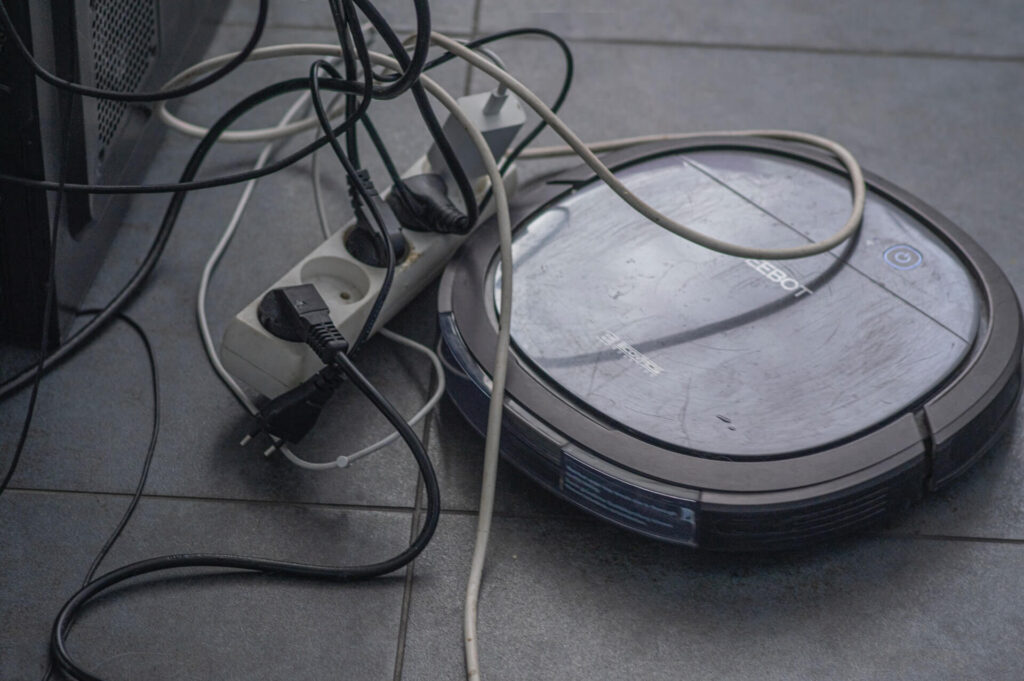
Every computer comes with about half a dozen cords and cables, but the number can be even larger if you own plenty of peripherals. Placing the tower in a box with all that wiring still attached would be very impractical, so start boxing up after you've unplugged every peripheral and cable. If you're not sure how to reattach the components, taking a few pictures of the computer case will help you remember how to plug all the cables back in. This relocation hack is particularly useful for those who own several desktop computers, allowing you to spot when cables are missing. While everything can be disassembled, anyone with insufficient knowledge of computers should always avoid opening up the case. It will lose you the warranty and potentially damage some of its components.

Step 3 - Learn How to Pack a Computer for Moving
Now that you've backed up the data and unplugged all the cables, it's time to learn how to pack a desktop computer for moving. If you haven't kept the original packaging, begin by padding a box with many crumpled-up paper sheets or bubble wrap. This is the main thing that will keep the PC intact in case of an accident. Use several layers of bubble wrap when wrapping the computer tower as well, then tape the entire thing on several strategic spots. Considering tape residue can be very hard to remove, avoid taping directly over the case.
Once the tower is wrapped, carefully lower it in the padded box while keeping it upright. If there are any gaps left, fill them with additional material. To ensure nothing moves inside the box, lift it up and gently shake it. In case it does move, place more padding material to ensure the PC is completely fixed. Check out the video below if you want to see the entire process in action.
How to Move a Desktop Computer Monitor? These Tips Will Certainly Help
The monitor is probably the most fragile component of any computer, with the display being particularly sensitive. Considering it's also pretty expensive, securing it should be one of your top priorities. Fortunately, the process is very similar to packing a TV, so take a look at some tips that will help you secure a desktop monitor in no time:
- Remove the stand before you start wrapping,
- Cover the display with a foam sheet,
- Use a lot of bubble wrap or paper for wrapping,
- Secure the entire thing with plastic shrink wrap,
- Lower it in the box in the upright position, with the display facing the sides,
- Fill the gaps to ensure the monitor can't move within the container.
How Do You Safely Pack a Computer? Contact Some Walnut Creek Movers to Assist You
Preparing the PC appropriately might not be possible if you're relocating in a hurry. Gathering necessary paperwork for the rental application and dealing with real estate agents will occupy most of your time, meaning you'll have to contact professional Bay Area movers in Walnut Creek, CA. On the other hand, computers are one of the more common items movers won't move, complicating the situation even further. Considering all Bay Area moving companies have a list of non-allowables, remember to ask customer support if they move computers.

Step 4 - Secure All Your Desktop and Laptop Peripherals
Now that you've dealt with the computer's most expensive components, it's time to prepare all the peripherals and cables. While they might not be essential for it to work, you can't do anything on the PC without at least a mouse and keyboard. Other peripherals such as speakers, the Wi-Fi router, and the webcam will also need to be packed. Fortunately, there's nothing too special about preparing these, as the principles you've used to prepare the case and monitor still apply.
Considering the number of cables and wiring that come with computers, it's not surprising they are some of the more commonly forgotten things to pack. Most components use the same power cords, which makes them easy to forget once unplugged. Fortunately, you can avoid mix-ups by labeling the cables, which can be done relatively quickly with different colored sticky notes. To keep the individual cords from tangling, tie them with rubber bands, binder clips, or twist-ties, similar to how you would secure the laces when packing shoes.
Step 5 - Check Out Some Tips on How to Pack a Computer for Shipping
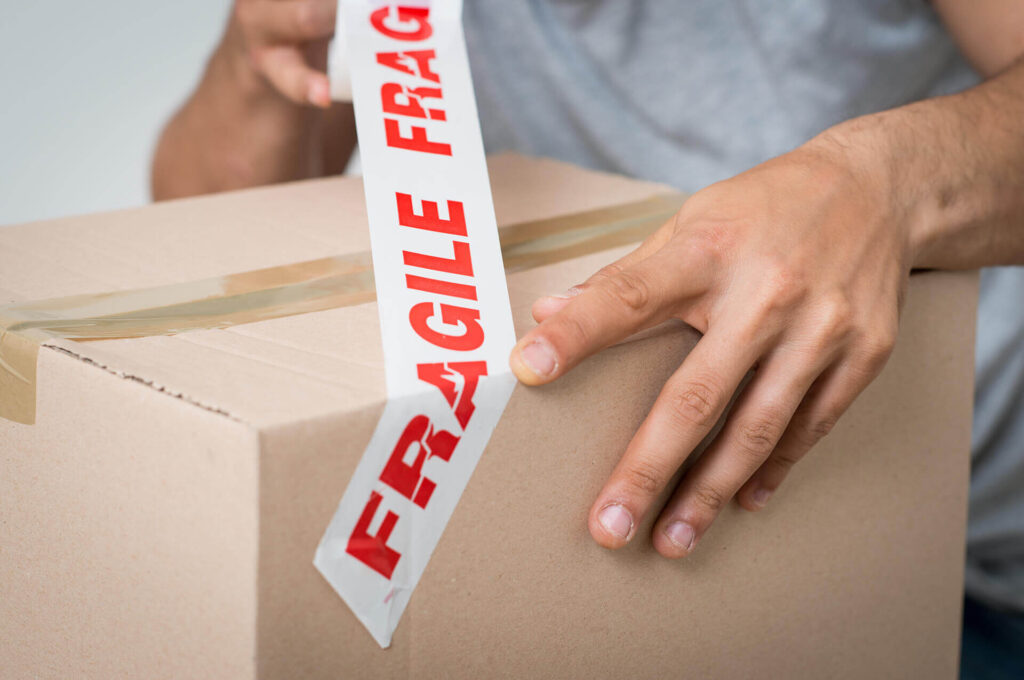
How do you transport a desktop computer safely? The best tip would be to treat the PC as a fragile object when loading the truck. Besides securing everything, this includes labeling all the boxes with PC components correctly. Mishandling the thing during the loading stage can cause damage to occur even when everything is packed perfectly. Thankfully, labeling each container properly should alert anyone who's loading the truck to be extra careful with fragile boxes. If you're loading everything yourself, secure the PC components in a way they can't get crushed by other things in the truck. You might also want to add premium insurance to your relocation expenses checklist just to be safe.
How to Transport a Laptop Computer?
Considering laptops were specifically designed to be carried around, transporting one will be relatively easy. It's best to move the laptop in a sleeve or a laptop bag, as these offer the best protection to both the portable computer and its peripherals. If you don't own one of these, a backpack is also a great option. Just remember to follow all the preparations we mentioned, and you'll be set.
Can't Figure Out How to Secure a Computer? Let Our Walnut Creek Moving Company Handle All the Preparations
We get it; not everyone is a computer wizard who knows how to handle this delicate machine. Fortunately, you can always hire 680 Movers in Walnut Creek to move the PC to your new home. Whether you're relocating to Walnut Creek, San Jose, or one of many Bay Area towns, our team can provide you with a fantastic packing service that will ensure your computer stays safe. We also offer excellent residential relocations and top-tier commercial moves, which will cover all your needs no matter what your reasons for moving might be. Contact us to learn more about these and many other services we offer, and you'll get a free quote on your entire move.